Tools and resources for web developers and designers: the 2024 essentials
Discover the essential tools and resources to improve your productivity and the quality of your work as a web developer or designer.
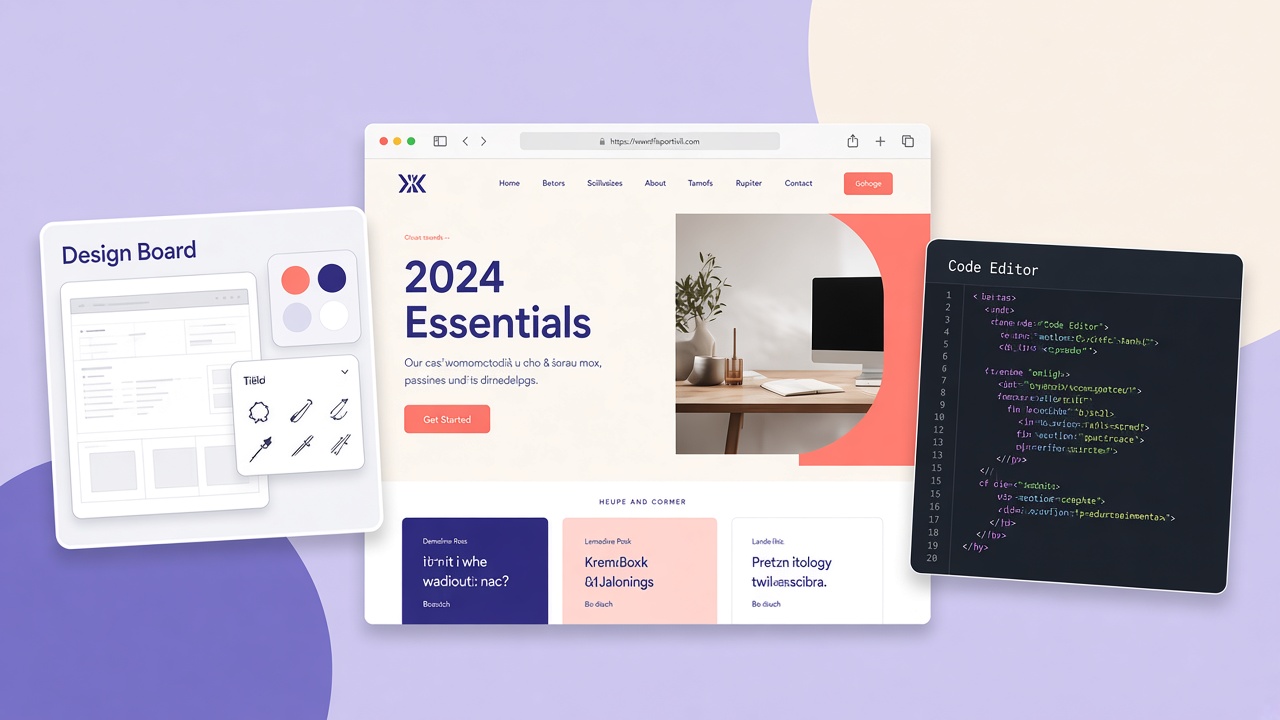
Having the right tools available is one of the factors that most affect the quality of the work of a web developer or a web designer. We are not only talking about comfort, but about a competitive advantage: the tools you choose determine how fast you are, how precise you are, how well you collaborate with other people and how much you keep order while projects grow.
In 2024 the point is not to have many tools, but a consistent toolbox: a few well-integrated tools that let you go from the idea to production without friction.
Why choosing the right tools is fundamental
When you work in digital, time is lost among repetitive problems, manual steps, infinite reviews, disordered files and trial-and-error debugging. The right tools reduce these frictions.
- Efficiency: automations, shortcuts and configurable environments mean doing more in less time
- Collaboration: Git and shared platforms avoid errors and keep track of decisions
- Quality: debugging, tests and audits intercept problems before they go online
Essential tools for web developers
Visual Studio Code has become the standard because it adapts to any project: from a static site to a complex application. Autocomplete, debugging, linting, a formatter and project management in a single orderly environment.
Git is practically obligatory. It lets you experiment without fear, go back, work on separate features and never lose control. GitHub adds collaboration, code review, tasks and test and deploy automations.
Postman comes into play with APIs, backends and integrations: testing requests, saving collections and checking responses saves hours on login, payments, CRM and dashboards.
Chrome DevTools is the daily laboratory: debug, layout, performance, responsive, network, console and accessibility. It is the difference between not understanding why it does not work and knowing exactly where to intervene.
Essential tools for web designers
Figma works like the web: in a collaborative and modular way. Reusable components, libraries, variants, interactive prototypes and real-time feedback accelerate the process and reduce misunderstandings with development.
Adobe XD remains valid for anyone in the Adobe ecosystem who often passes through Photoshop or Illustrator. For prototyping and sharing it is still a professional solution.
The best choice is the tool that lets you design systems, not only isolated screens: organised files, components and rules that scale when you add pages and variants.
Online resources that simplify the work
- MDN Web Docs for HTML, CSS and JavaScript: a reliable, updated base
- CSS-Tricks for layouts, Flexbox, Grid and frontend patterns
- Stack Overflow for specific errors and a comparison between real solutions
The difference between whoever grows quickly and whoever gets stuck often is knowing how to use the resources well: understanding the standards of the web, not only copying an answer.
A 2024 toolbox checklist
- Editor: VS Code configured for your stack
- Version control: Git + a remote repository
- Design: Figma (or XD if in the Adobe flow)
- Debug: Chrome DevTools + Lighthouse
- API: Postman when you work with a backend
- Documentation: MDN always at hand
Common questions
Which tools for a beginner? VS Code, Git and Chrome DevTools are enough to start with method. Add Figma if you also work on design.
Figma or Adobe XD? If you often collaborate, Figma is almost always the most practical choice. If you are in the Adobe ecosystem, XD can integrate well into the existing flow.
Conclusion
The tools do not make the professional, but they multiply their potential. A well-chosen toolbox lets you work better, faster and with less stress, keeping quality and control even when the project grows. In 2024 the real difference is a solid workflow: consistent tools, reliable resources and a method that accompanies you from the idea to the release.
Automation and code quality
Besides the editors, it is worth integrating a formatter (Prettier), a linter (ESLint) and pre-commit hooks into the flow. Automating basic checks avoids infinite discussions on style and intercepts trivial errors before the merge. On small teams it saves hours; on large teams it is almost obligatory.
Design-developer collaboration
Figma (or an equivalent) does not replace communication: define together breakpoints, component states (hover, focus, disabled) and behaviour on mobile. An orderly design file with consistent naming reduces implementation time and requests for clarification halfway through the sprint.
Tools for performance and accessibility
- Lighthouse built into Chrome for rapid audits
- axe DevTools for accessibility problems
- WebPageTest for analysis from different locations and devices
Including these checks in the pre-release routine avoids surprises after the deploy and improves the quality perception of the project.
File and asset management
Figma, Photoshop and Illustrator generate exports that must be optimised: SVG for icons, WebP or AVIF for photos, sprites only if they are really needed. Tools such as Squoosh or integrated build scripts avoid loading 2 MB files in production for a hero.
PM and communication with the client
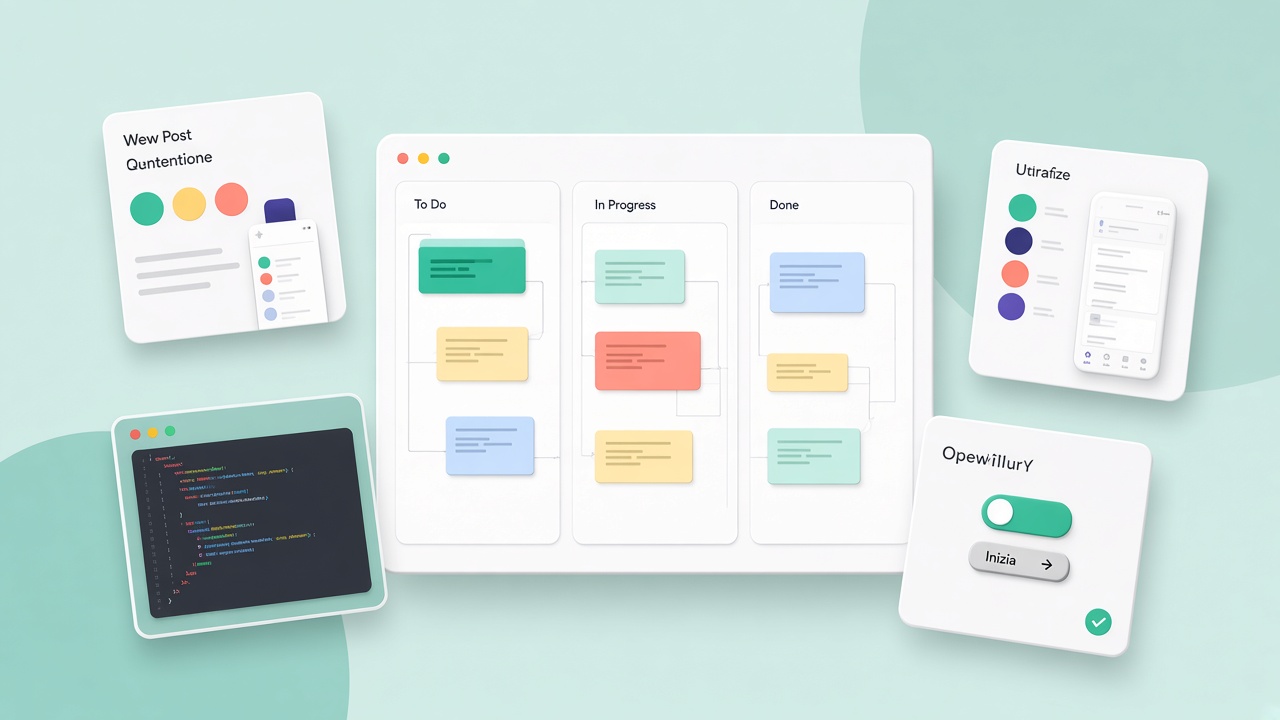
Notion, Linear or even a shared sheet with task status (to do, in progress, in review, done) reduce the repeated “where are we?”. Record decisions on scope, priorities and what is out of budget: the best tool does not replace aligned expectations.
Security in the development flow
- never commit API keys or passwords: use environment variables
- update dependencies with an audit (
npm audit, Composer security) - a code review on functions that touch auth and payments
Continuous training without overload
Choose 2-3 reliable sources (newsletters, blogs, technical channels) instead of chasing every novelty. Dedicate time to fundamentals that do not expire: HTTP, accessibility, performance, UX. Fashions pass; the bases remain.
Recommended VS Code extensions
- ESLint + Prettier for a consistent style
- Live Server or an equivalent for a rapid preview
- GitLens for history and inline blame
- PHP Intelephense or a language server for your stack
Complementary design tools
Besides Figma: Miro for workshops and user journeys, a Contrast checker for colour accessibility, Zeplin or a direct export for measurements. The goal is a flow where the developer does not guess spacing or hex colours.
A tool budget for freelancers
The free version of Figma, VS Code, GitHub, Netlify for static sites, Notion for documentation are often enough at the beginning. Invest in paid tools when the volume of projects justifies the ROI: a PHPStorm licence, Semrush, Adobe if the flow requires it.
Templates and boilerplates
A starter repository with lint, a folder structure and deploy already configured saves hours. Personalise them once and reuse them: be careful, however, not to deliver the exact same site to different clients without adaptation.
A recommended minimum stack to start
The VS Code editor, Git with GitHub, Figma free, Chrome, a Netlify or Vercel account for demos, Notion for notes. Add Postman when you touch APIs, Lighthouse for audits, a screenshot service to document the UI. Avoid subscribing to ten SaaS before the first paid project.
Integration between tools
The real productivity leap arrives when Figma links to GitHub, commits close tasks on Notion, the deploy starts from a merge on main. Map the ideal flow on paper, then choose only integrations that you really use every week.
Quality perceived by the client
A preview on staging, a readable changelog, punctual replies on scope: the client does not see the tools, they see the process. Presenting an orderly method is worth as much as the choice of the best framework.
Tools for email and marketing (when they are needed)
Mailchimp, Brevo or newsletter integrations in the site require tests on forms and deliverability. Tools such as Litmus or multi-client previews help on HTML email templates, different from the web layout. Coordinate with whoever manages copy and lists: the tool does not solve weak content.
Backup and disaster recovery
Automatic backups of the database and of the files, a restore tested at least once. For made-to-measure projects, document where the repo, hosting, DNS and credentials live (in a secure vault). An organised freelancer also stands out in how they manage the aftermath of an incident.
A recap: the 2024 toolbox that works
VS Code + Git + Figma + DevTools + MDN cover 80% of the days. Add Semrush or Ahrefs if you do SEO for clients, PHPStorm if you live on enterprise PHP, Docker when environments must be identical. Fewer tools, more mastery: repeat the same flow until it is automatic, then evaluate only one upgrade at a time.
Design systems and shared libraries
In a team, create a Figma library with components aligned with the code (buttons, inputs, cards). On the dev side, reuse the same CSS classes or tokens. Every new page becomes composition instead of reinvention. Time savings and visual consistency are immediate.
Monitoring errors in production
Sentry, LogRocket or alternatives capture JS exceptions and problematic sessions. Configure alerts on critical errors. For the designer, screenshots and replay accelerate the reproduction of UI bugs reported by users.
Team training and onboarding
Document the environment setup in a single place: Node/PHP versions, install commands, example variables. A new collaborator productive in days instead of weeks pays for the initial investment in shared processes and tools.
A quick comparison: when to choose what
Brochure sites only: VS Code, Git, Figma, Netlify, optimised images. Mid-size e-commerce: add a staging environment, analytics, SEO tools, a DB backup. Web app: Postman, Docker, CI, error monitoring, automatic tests on critical flows. Adapt the toolbox to the project instead of loading every possible SaaS from day one.
Remember: the tools amplify existing skills. First solidify HTML, CSS, JS and the Git method; then every new tool integrates naturally into your daily flow without becoming a distraction.
Accessibility and inclusivity in the tools
Choose plugins and themes that do not break keyboard navigation. In Figma, check contrasts with dedicated plugins before the handoff. In code, axe or Lighthouse flag rapid problems. A modern tool stack also includes checks for users with different needs: it is not a separate department but part of the quality delivered.
Finally, review the toolbox every six months: eliminate unused subscriptions, unify tools that overlap and update the LTS versions of runtimes and dependencies. A mature professional has a few excellent tools, not an infinite collection of free trials.